

In this post, I’ll walk through the steps to effectively use Sibelius Cloud Sharing to upload, manage, and share your scores. This feature is available for paid versions of Sibelius—Sibelius Artist and Sibelius Ultimate. Unfortunately, the free version, Sibelius First, does not support cloud sharing. At the end of this post, you’ll find a YouTube video that demonstrates the entire process.
Getting Started
To use Sibelius Cloud Sharing, you need a paid version of Sibelius and an Avid account. If you don’t have an Avid account, visit avid.com and create one. You’ll also need to download Avid Link, which you can find in your Avid account under “My Products.” Once you’ve installed Sibelius and Avid Link, open the score you want to share and follow these steps:
- Save the score with an appropriate name.
- Navigate to Cloud Sharing
- Go to the Home tab.
- Click the Share option in the Share Tab.

3. Share Your Score
- After clicking Share, you score will be uploaded to the Cloud.
- Once uploaded, you can copy the link or embed code for sharing.
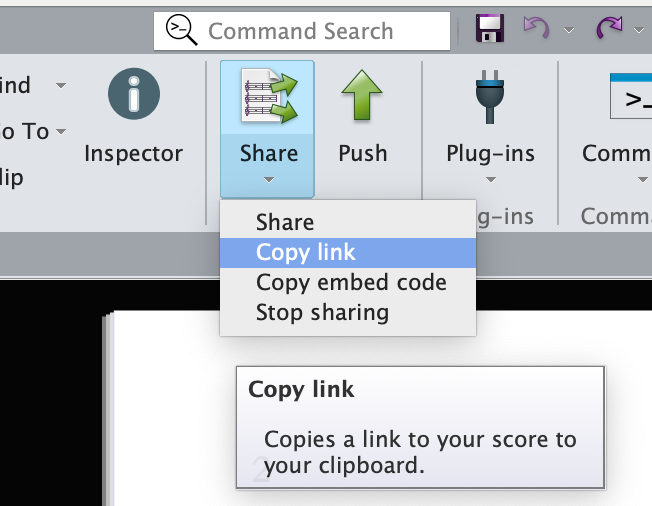
- The score is accessible on any device that supports a web browser (e.g., computers, iPads, Chromebooks), and users do not need to own Sibelius to view it.
4. Customize Your Settings
- You can enable additional features such as printing or downloading directly from Sibelius. Click the icon next to Cloud Sharing to open the Cloud Sharing Dashboard.
- Navigate to the score you just shared. You can check the options you want to enable when someone is viewing this score on the web.

5. Share the link with others
Here is what a link in a browser looks like: https://sibl.pub/v/pjrG19XROKBFOO5_tveSq
- Viewers can playback the score, transpose it and zoom in or out using browser commands like Command + and Command -.
Managing and Editing Cloud Scores
If you need to make changes to your score, you can easily do so:
- Make edits in Sibelius, save the file, and click the Push button in the Cloud Sharing Dashboard to update the shared version.

- The updated version will automatically sync, and anyone with the link can access the newest version.
Extracting Parts and Creating Individual Links
Currently, Sibelius Cloud Sharing does not support direct access to individual parts within the score. To share individual parts, you’ll need to extract them:
- Extract the Parts
- Go to the Parts tab in Sibelius and select Extract Parts
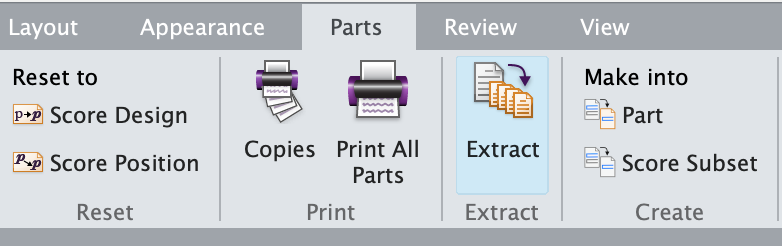
- Choose the parts you want to extract (e.g., flute and piano) and save them as separate files.
- Go to the Parts tab in Sibelius and select Extract Parts
- Upload and Share Individual Parts
- Share each part separately by uploading them individually to the cloud and generating a unique URL for each.
- These distinct URLs can be shared with students or collaborators as needed.
Deleting Files from the Cloud
If you want to remove a score from the cloud:
- Open the Cloud Sharing Dashboard.
- Highlight the score you wish to delete.
- Scroll up and click Delete—note that this must be done carefully as right-clicking does not work.
Checking Your Cloud Storage
To check your available storage space:
- Open Avid Link, navigate to your account, and you’ll find the storage details listed there.
Troubleshooting Tips
If you encounter issues with Cloud Sharing:
- Ensure you have the latest version of Avid Link installed.
- Reload the Cloud Sharing Dashboard by holding down Option (or Alt on Windows) and clicking the share button.
- If problems persist, contact Sibelius tech support for further assistance.
Watch the Full Video Tutorial
For a complete visual demonstration, check out the video below where I walk through all these steps in detail:
By following these steps, you’ll be able to manage and share your Sibelius scores efficiently using Sibelius Cloud Sharing.
 Making the Most of Notation Software