
In this post, I’ll walk through how to export your Sibelius score as a video file and upload it to YouTube, with helpful formatting and playback tips. You’ll find a video demonstration of these steps at the end of this post. Feel free to leave any comments or questions below or in the YouTube thread.
Steps to Export Your Score
- Format Your Score
Begin by formatting your score to your liking. Once it’s ready, go to File > Export > Video in Sibelius.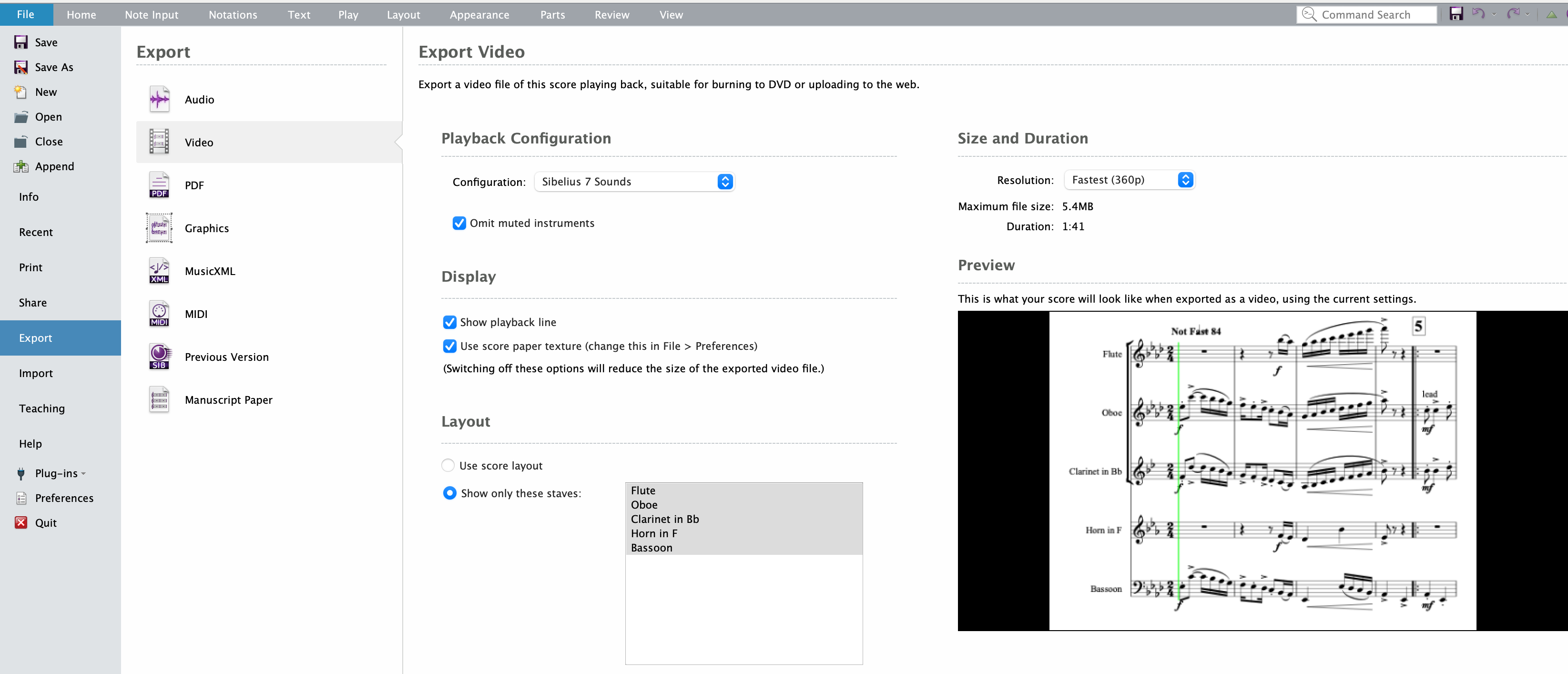
- Select Sound Configuration
Choose a high-quality sound configuration for the export, such as Sibelius Sounds or NotePerformer over General MIDI. This will give your video a more polished audio quality. - Adjust Export Settings
Explore the settings for export:- Omit Muted Instruments: If parts are muted in the mixer, check this option to exclude them from the export.
- Show Playback Line: Enable this if you want the playback line to appear as the score plays.
- Use Score Paper Texture: Customize the background of the video under File > Preferences. Disabling paper texture can reduce the file size, but it’s not necessary on YouTube unless you want a specific look.
- Use Score Layout: Select this to display the score exactly as it appears on the page. For larger scores, Show Only These Staves can help keep everything in view.
- Set Resolution and Save
Choose the fastest export resolution, as file size won’t impact playback quality on YouTube. Save your file in a designated project folder to keep your videos organized.
Previewing Your Export
After the export, check the video quality by opening the file:
- Mac Users: Use QuickTime Player by right-clicking and selecting Open With.
- Windows Users: Use any compatible video player such as VLC Media Player https://www.videolan.org/
Play the video to ensure both playback and audio meet your standards.
Creating Videos for Individual Parts
To make separate videos for individual parts:
- Go to Export > Video and select specific parts.
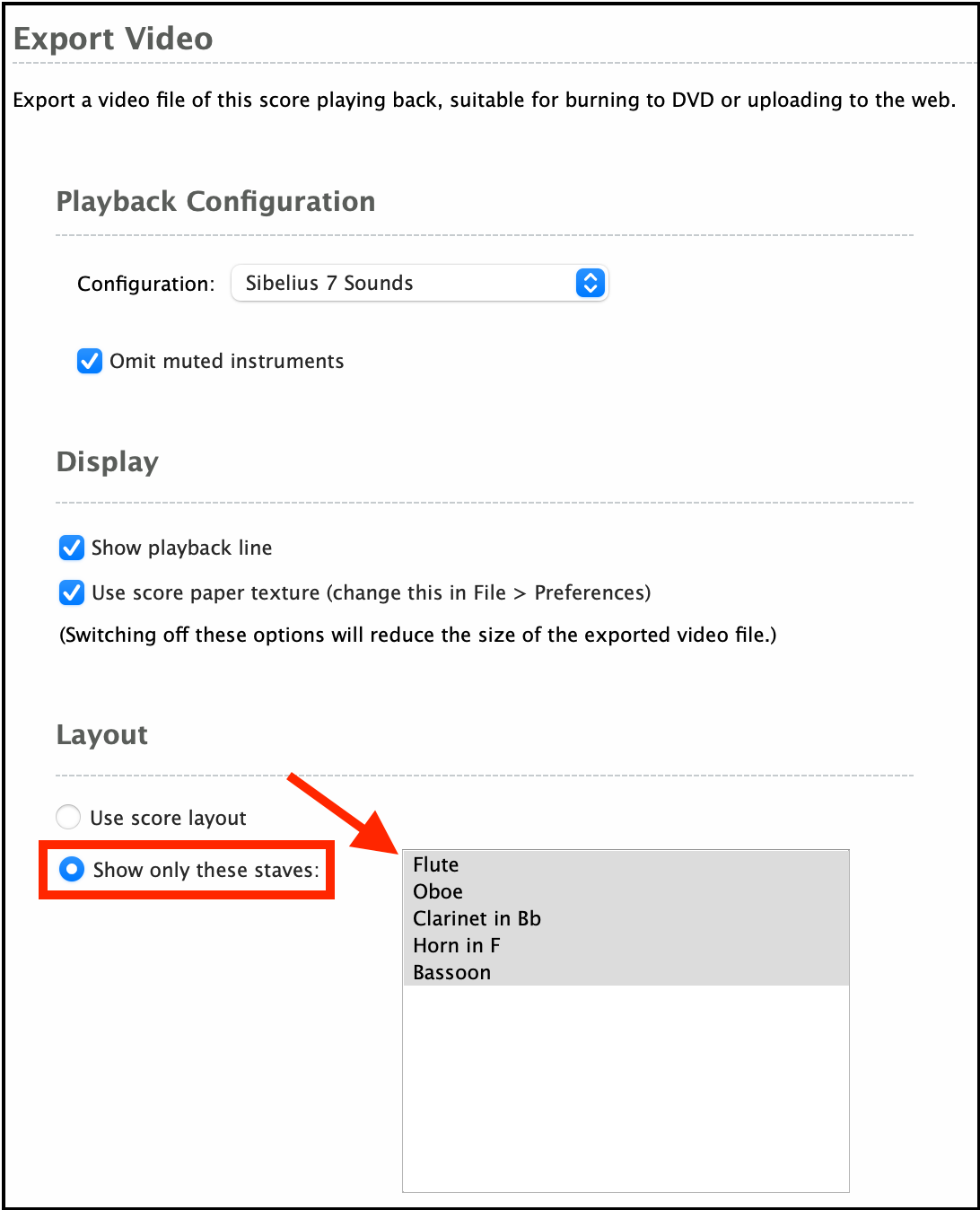
- Select Parts: Use Shift for contiguous selections or Command (Mac) / Control (Windows) for non-contiguous selections.
- Rename Files: Save each part under a unique name to avoid overwriting files.
Adjusting Parts with Muting in the Mixer
If you’d like to omit specific parts while keeping others audible:
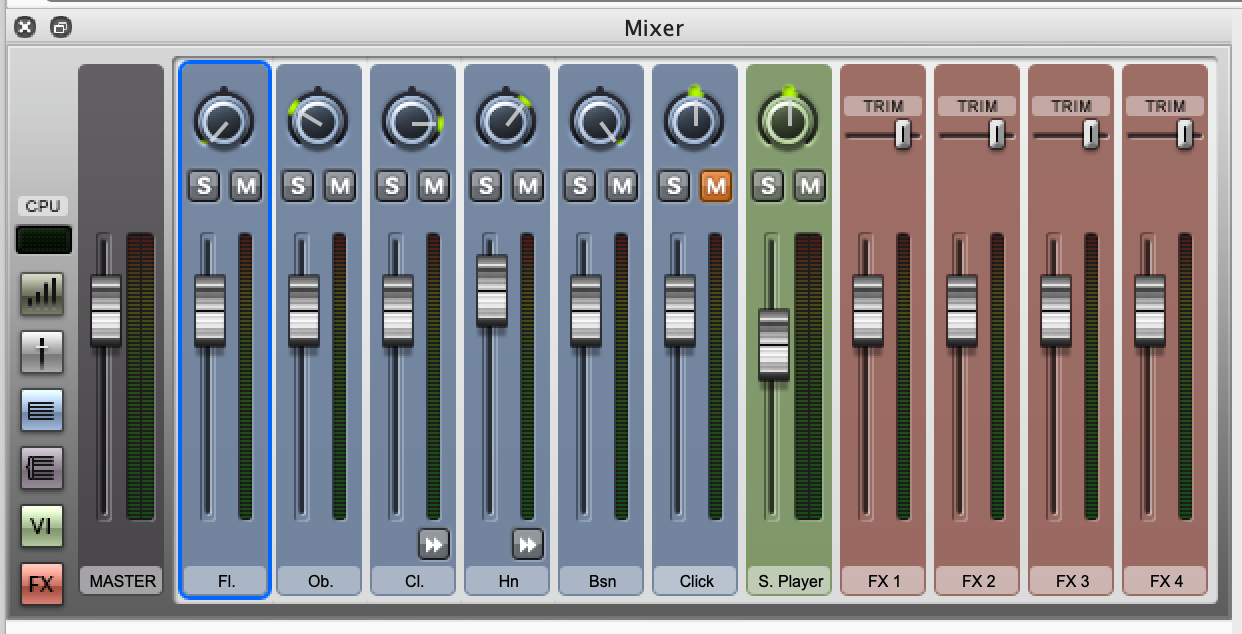
- Open the mixer by pressing M.
- Mute/Unmute Parts: Click the M button for 50% mute or double-click for full mute.
- Check Omit Muted Instruments in the export settings, then name and save the file.
Uploading Your Video to YouTube
To share your video on YouTube:
- Upload as Unlisted: This allows only those with the link to view the video.
- Go to YouTube Studio > Content to manage and edit each video’s title, description, and visibility.
- Once uploaded, copy the video link to share with others.
Watch the Step-by-Step Video
For a visual demonstration of these steps, watch the video below. And if you found this guide helpful, please leave a comment here or in the YouTube thread.
 Making the Most of Notation Software