

In this post, I’ll go through the steps to integrate NotePerformer 4 with the Berlin Orchestra library (created for Berklee) in Sibelius. This is especially beneficial for Berklee Online students, who can access the Berlin Orchestra library at a significantly reduced price.
Be sure to check out the video demonstration embedded at the bottom of this post for a complete walkthrough.
What You Need
Before diving in, ensure you have the following:
- Sibelius
- NotePerformer 4

- Berlin Orchestra library from Orchestra Tools
- A computer with at least 64 GB of RAM, though 128 GB is recommended for optimal performance with Berlin Orchestra. It is possible to use it with less RAM, by loading a small group of instruments. The more instruments, the more RAM is used.
Step 1: Purchase and Download
Start by purchasing and downloading the Berlin Orchestra library and NotePerformer 4. NotePerformer integrates seamlessly with Sibelius, providing high-quality playback for your scores.
Visit NotePerformer’s website for more details and to make your purchase. Berklee Online students can access exclusive deals on Berlin Orchestra through Berklee Student Deals.
Step 2: Configure NotePerformer in Sibelius
- Install NotePerformer.
- Open a Sibelius score that you want to use for experimenting with the Berlin Orchestra Playback Engine.
- Set the playback configuration in Sibelius to “NotePerformer” via Play > Configuration.
- NotePerformer also installs a companion app called NPPE NotePerformer Playback Engine. Launch this app to manage compatible libraries.
Step 3: Install the NPPE Berlin Orchestra Playback Engine
Within NPPE (NotePerformer Playback Engines) app, select the Berlin Orchestra Playback Engine. The cost for the playback engine is $69, which is separate from the cost of the library’s sound files.
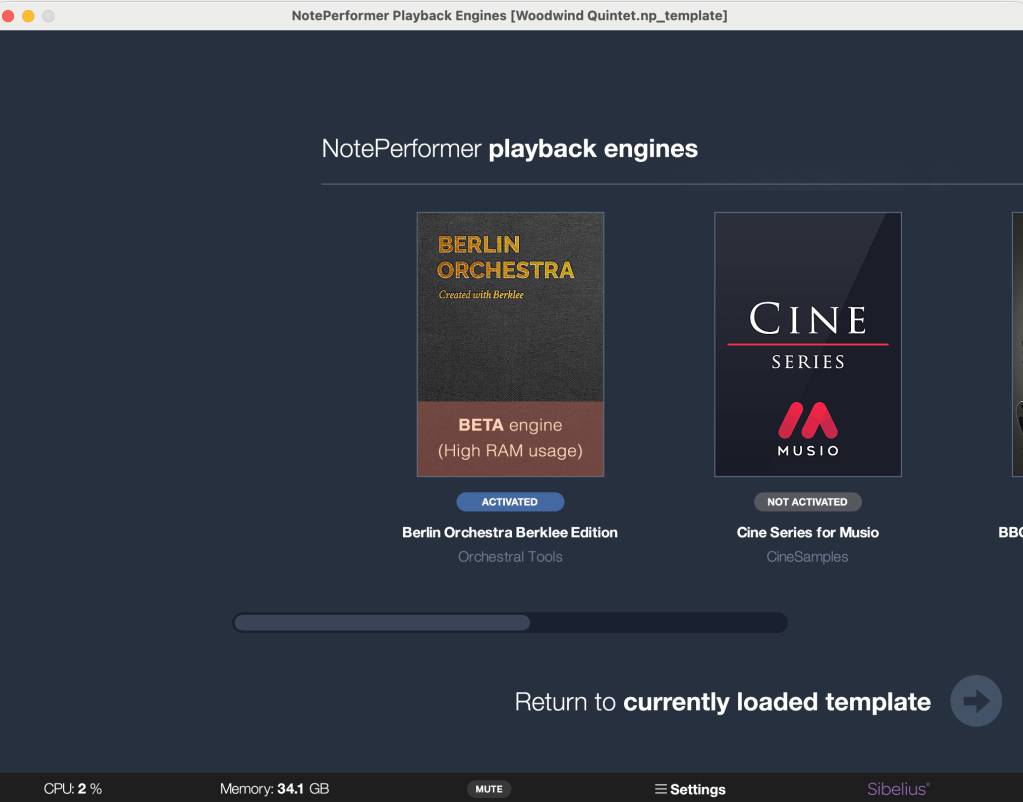
If you’re unsure about committing to the playback engine, you can test it in Test Mode, which allows you to experiment with the library in one-hour increments. These tests can be repeated multiple times, giving you the opportunity to thoroughly evaluate the option before making a purchase.
After you’ve decided to proceed:
- Download the playback engine.
Step 4: Load the Sounds
- Load the Berlin Orchestra sounds. This library is resource-intensive, so ensure your computer meets the RAM requirements.
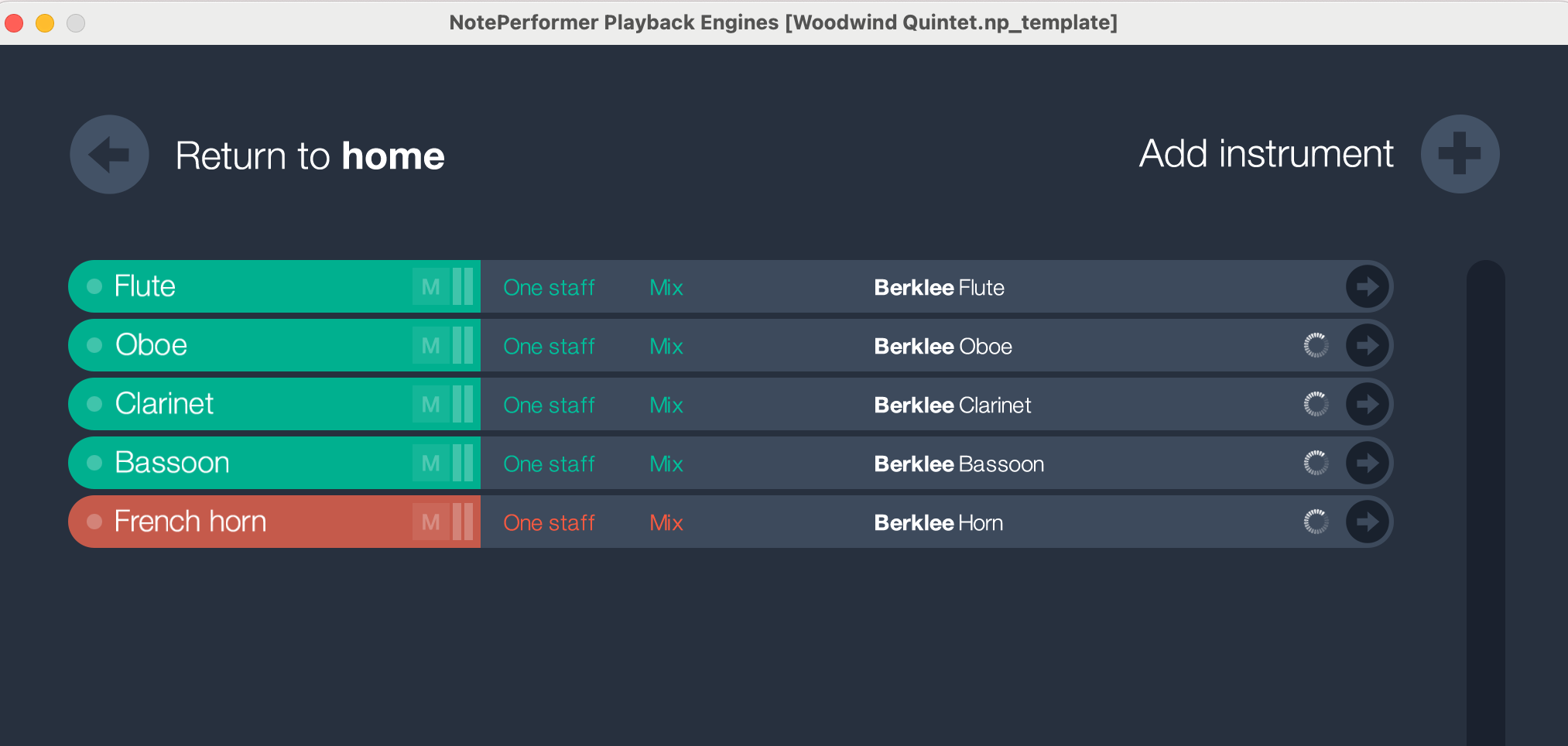
- In Sibelius, press “Play” to hear your composition routed through the Berlin Orchestra sounds. You can mute the Berlin Library and Sibelius will use NotePerformer’s default sounds.
- Note that if there is an unassigned instrument in the Berlin Library template, playback will default to the NotePerformer sounds. This allows you to mix and match sounds.
Step 5: Save Your Template
Save your setup for future projects:
- In the NPPE app, go to File > Save As and name your template (e.g., “Woodwind Quintet”).
- This saved template can be reused for other projects, saving time.
Step 6: Experiment and Compare
NotePerformer allows you to preview sounds for an hour before purchasing, so feel free to explore how the Berlin Orchestra library enhances your compositions.
Final Thoughts
Combining NotePerformer 4 with the Berlin Orchestra library can transform your music production, offering studio-quality playback for your compositions. Whether you’re creating chamber music or full orchestral scores, this integration is a game-changer for Berklee Online students and professional composers alike. You have much more flexibility if you are working in a DAW, however, using the NotePerformer playback engines you have much more flexibility within Sibelius and it can be applied quickly without need to edit.
Watch the Demo
For a detailed, step-by-step demonstration of this process, watch the video below. It showcases everything covered in this post, along with an audio comparison between NotePerformer and the Berlin Orchestra library.
 Making the Most of Notation Software