

Creating screencasts with high-quality audio from your music notation software is essential for music educators and content creators. Whether you’re using Sibelius or Dorico, the process of recording audio directly into ScreenFlow for Mac shares some common steps. This blog explains the setup, followed by specific instructions for each software, with links to corresponding YouTube videos.
Common Steps for Sibelius and Dorico
- Install and Prepare ScreenFlow
- Download and install ScreenFlow, either as a paid version or a free trial.
- This software is designed for advanced editing and screen recording.
- Download and Install the ScreenFlow Audio Driver
- Locate the file in your Downloads folder, expand the package, and install it. You will need administrator access.
- Use Headphones
- To prevent audio playback from bleeding into the microphone track, be sure to use headphones during recording. This ensures clean, high-quality audio output.
- Configure ScreenFlow for Recording
- Launch ScreenFlow and go to Configure Recording.
- Ensure Computer Audio is selected. If not, click the plus icon and add it.
- Optionally, set up additional inputs like your monitor, webcam, or microphone.
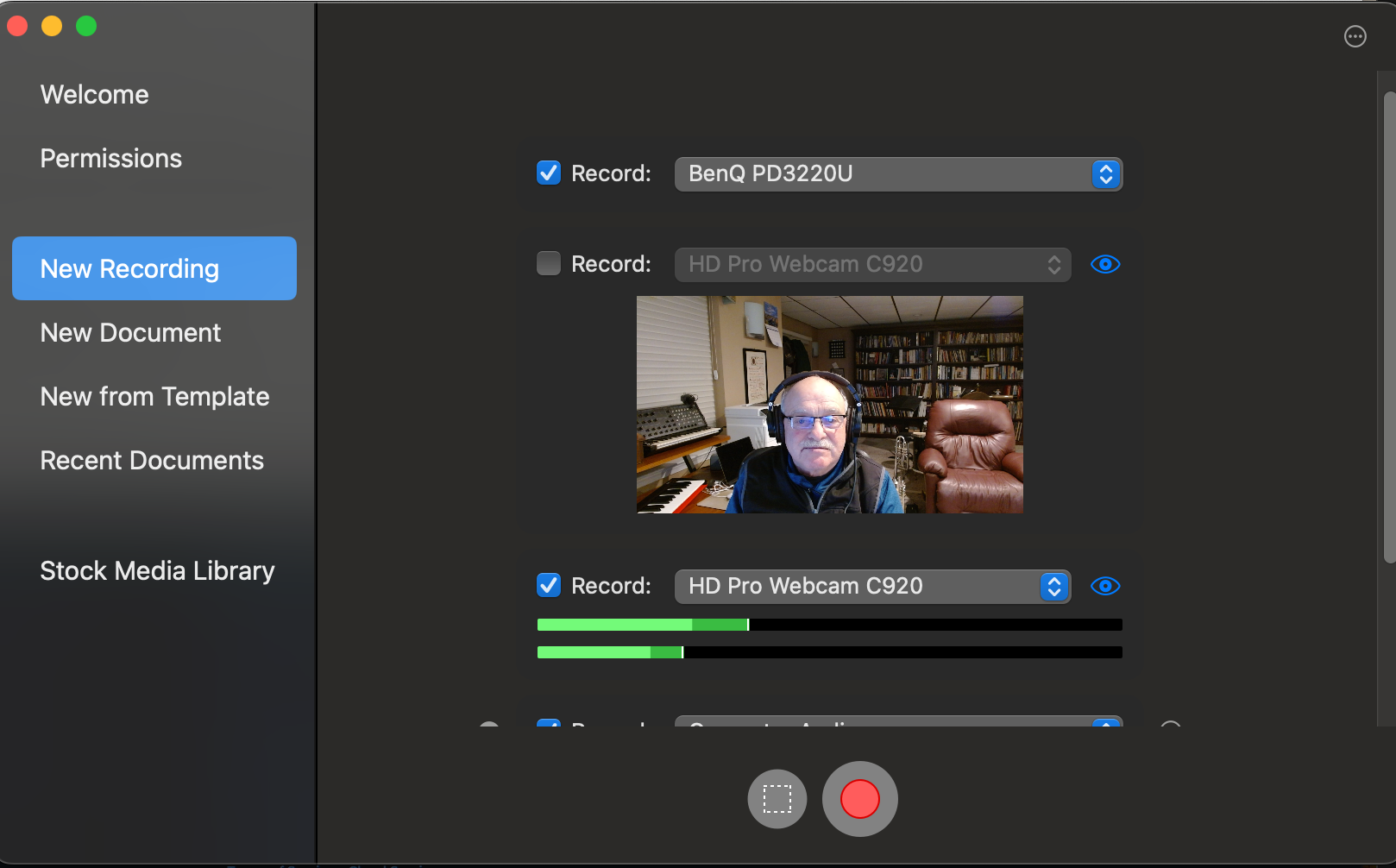
Recording Audio from Sibelius
- Open Sibelius and go to the Play tab.
- Click the icon for Playback Devices or use Command Search to locate it.
- In the Playback Devices window, select Audio Engine Options.
- Choose the Telestream Audio Driver (visible only if ScreenFlow is running).

- Close the window.
- Start recording in ScreenFlow.
- Play back your Sibelius project to test the setup.
- Stop the recording and verify that both the microphone input and Sibelius output were captured.
- Detach and adjust the audio as needed in ScreenFlow.
Important Reminder: Ensure ScreenFlow is running before launching Sibelius; otherwise, the Telestream driver won’t appear as an option.
Recording Audio from Dorico
- Launch Dorico after starting ScreenFlow.
- Wait for Dorico to load the audio engine.
- Go to the Edit menu and select Device Setup.
- In the Device Setup window, select Telestream Audio Capture as the driver.
- If it’s not listed, ensure ScreenFlow is running first.

- If it’s not listed, ensure ScreenFlow is running first.
- Close the window.
- Start recording in ScreenFlow.
- Play back your Dorico project to test the setup.
- Stop the recording and verify that both the microphone input and Dorico output were captured.
- Detach and adjust the audio as needed in ScreenFlow.
Note: Dorico retains the audio engine settings when you quit. If needed, repeat these steps to change the settings back to your preferred audio engine.
 Making the Most of Notation Software