

Are you working on contemporary music notation analysis for a Berklee course? If so, you’ll need a customized Sibelius setup to match Berklee’s specific requirements for chord symbol analysis and adding annotations. In this post, I’ll walk you through how to download the templates I created and how to use them in your scores to meet Berklee’s standards. 
Download the Berklee Theory Analysis Sibelius File
The first step is to download the Berklee Theory Analysis Sibelius file. This file has been backward-saved, making it compatible with any version of Sibelius, from version 8 through all versions of Sibelius Ultimate.
Import and Save House Style
Once you’ve downloaded the file, you have two options to get started:
- Save a House Style:
- Go to Appearance > House Style Export.
- Save it with a specific name, such as Berklee Analysis.
- When creating a new score, import it as your House Style.

- Save as Manuscript Paper:
- Open the downloaded file and customize it to your needs.
- Press the letter I to open the Instruments tab and make any adjustments.
- Save it as Manuscript Paper via File > Export > Manuscript Paper.
- Name it something memorable, such as Berklee Theory Analysis.
- Use this when starting a new score for Berklee Analysis.

Formatting Chord Symbols
Berklee requires minor chords to be displayed with a dash (-) instead of an “m.” To set this up:
- Go to the Text tab, select Chord Symbols, and edit the suffix.
- Update all relevant chord types (e.g., Minor Triad, Minor 6, Minor 7).
- These changes will remain in effect every time you use Sibelius unless you manually reset them.
Adding Brackets and Arrows
Berklee often requires brackets and arrows for analysis. Here’s how to add them:
- Brackets:
- Press L to open the Lines menu and search for Bracket.
- After inserting into the score turn off Magnetic Layout under the Layout tab for precise placement.
- Use Alt (Option on Mac) and click to copy and reuse brackets.
- Dashed Brackets:
- Search for Berklee in the Lines menu to find a custom created dashed bracket. Name: Dashed Line Berklee.
- After inserting into the score turn off Magnetic Layout under the Layout tab for precise placement.
- Use Alt (Option on Mac) and click to copy and reuse brackets.
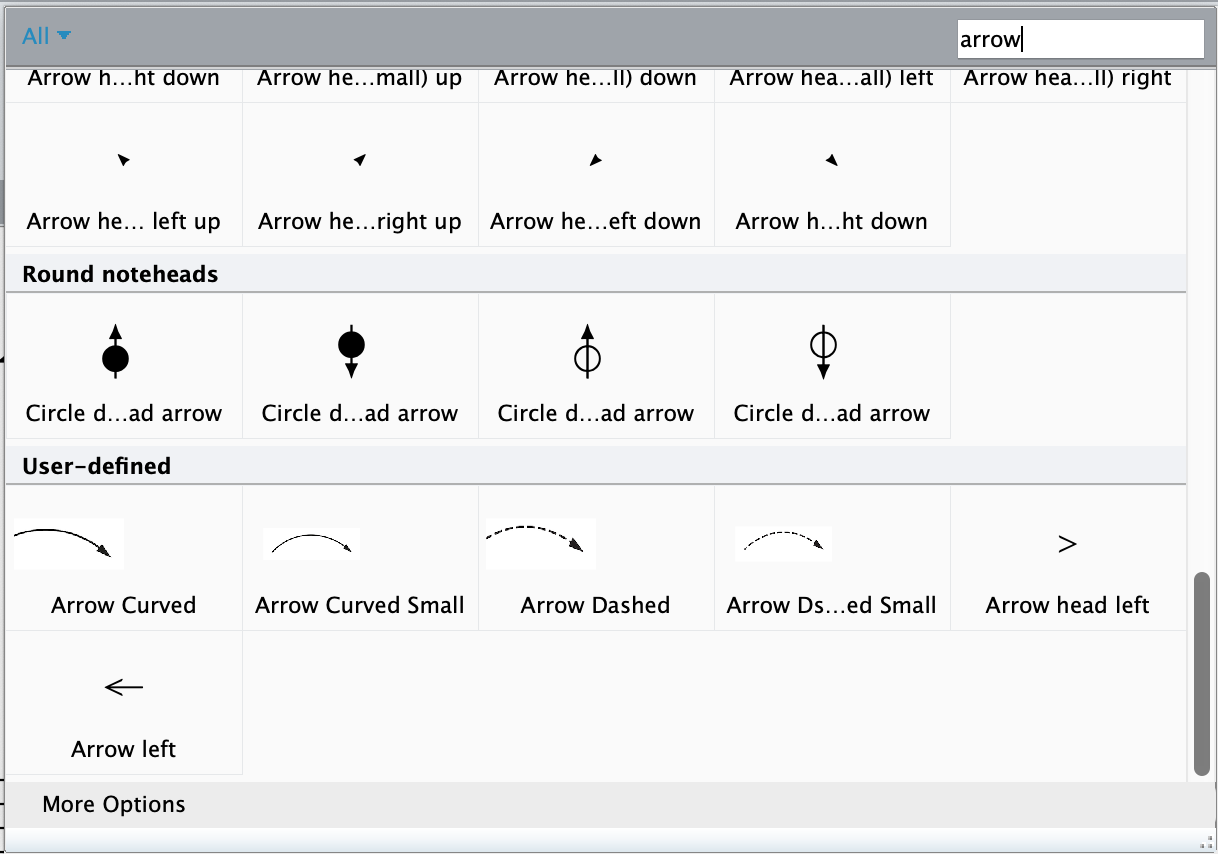
- Arrows (via the Symbols menu):
- Press Z to open the Symbols menu (or go to Notations> Symbols) and search for Arrow.
- Scroll down and choose one of the custom arrows added to the template in the User-Defined area.
- There are two sizes of the normal arrow and the dashed arrow. Symbols cannot be resized.
- Arrows option 2:
- Download the arrow graphics and drag them into the file. You can adjust the size of each imported graphic.
- If you use this option, you will have to drag them in for each score that you create.
Entering Chord Symbols and Analysis
For chord symbols:
- Select a note and press Command-K or go to Text > Chord Symbols > Chord Symbol.
- When entering any version of minor chords, enter the letter m instead of a dash. If you made the changes to the chords (see above), they will appear with a dash.
For chord analysis:
- Use the Search Command and type Berklee to access the preconfigured text style. Look for Berklee Analysis Text Style. This is a custom text style that I created and will automatically appear above the chord text.
Final Tips
- Save the template as both a House Style and Manuscript Paper for quick access in future projects.
- Download additional graphic files for arrows if you prefer using them over the Symbols menu items. The advantage is they can be resized in the score.
Watch the Full Video Tutorial
For a complete walkthrough, including live demonstrations of each step, watch the video below. All download links mentioned are available directly in this blog post and in the comments section of the YouTube video.
 Making the Most of Notation Software