

One of the fastest ways to improve your workflow in Sibelius Ultimate is to create custom keyboard shortcuts. Sibelius includes many excellent preset shortcuts, but there are still plenty of commonly used commands that do not have one, or situations where an additional shortcut can make your work more efficient.
The goal of creating custom shortcuts is not to memorize more keystrokes. It is to reduce repeated trips to menus and keep your focus on the score. If you use a command frequently and it does not already have a built-in shortcut, it is a strong candidate for a custom shortcut. Repeated menu clicks are the clearest signal that a shortcut will save time. Start with one or two commands you use every session rather than trying to customize everything at once.
Before getting started, one important guideline: Do not override existing shortcuts unless you are certain you do not need the original one.
There is a YouTube video linked below this post for a live demonstration of these steps.
Opening Preferences in Sibelius
To create or edit shortcuts, you must have a score open.
- With any file open, choose Preferences from the File menu on both Mac and Windows. You can also type “preferences” in the search box, or use the universal shortcut Command + comma on Mac or Control + comma on Windows.
- In the Preferences window, select Keyboard Shortcuts.
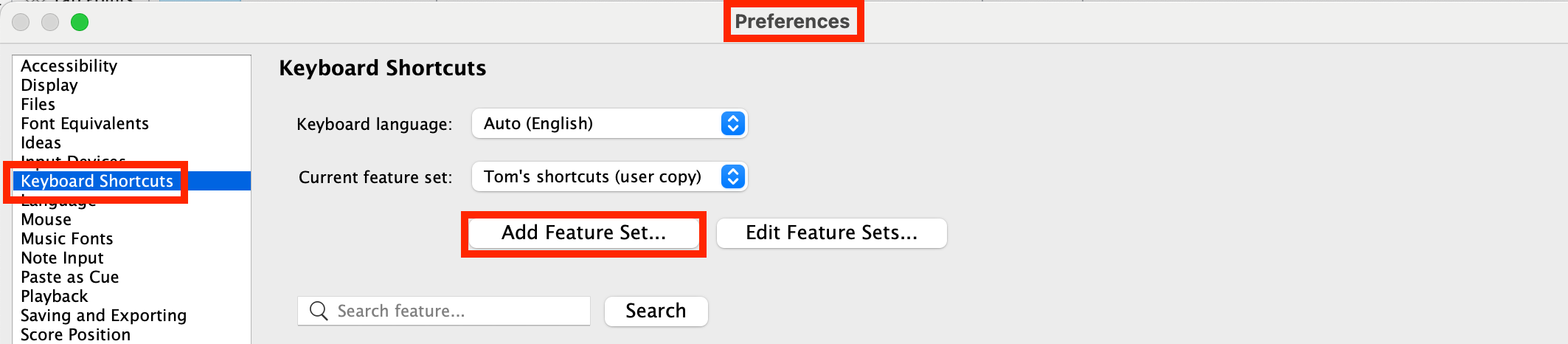
Creating and naming a custom shortcut set
When you attempt to add a new shortcut, Sibelius will prompt you to create a new feature set. This is Sibelius’s way of protecting the default shortcuts.
- Click the Add Feature Set button and give it a descriptive name.
- Leave “Base on default set” checked so you start with all standard shortcuts intact, then confirm that the new set is active.
Example 1: Hide Invisibles
The Hide Invisibles command is extremely useful for proofreading, but it does not come with a default shortcut.
- Search for Hide Invisibles in the Keyboard Shortcuts panel and add a shortcut.
- Shift + U works well on both Mac and Windows and does not conflict with existing shortcuts.
- When you roll the mouse over the ribbon, the new shortcut will appear.
Once assigned, this shortcut toggles Invisibles on and off instantly.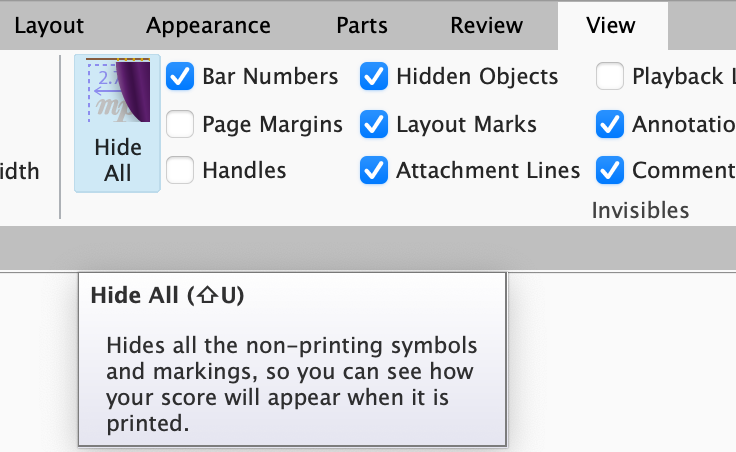
Example 2: Renotate Performance
Renotate Performance is used after recording in Flexi Time, importing MIDI files, or even cleaning up step-entered music.It does not have a default shortcut.
- Search for Renotate Performance, add a shortcut, and assign the letter U.
Example 3: Start Recording with a single key
The Start Recording command already has a default shortcut. However, Sibelius allows you to assign more than one shortcut to the same command.
In this case, adding a single-key shortcut such as the backslash key (\) can be very helpful when your hands are already on a MIDI keyboard. This allows you to start recording without using a multi-key combination.
One important note: when a command has multiple shortcuts, only the primary shortcut appears when you roll over the command in the Ribbon. The additional shortcut still works even though it is not shown.
Testing your shortcuts
After creating each shortcut, return to the score and test it immediately. Make sure it behaves as expected and does not interfere with other parts of your workflow.
Where Sibelius stores your custom shortcuts
Sibelius does not include Export or Import buttons for keyboard shortcuts. Instead, custom shortcuts are saved automatically as files on your computer. Each shortcut set is stored as a file with an .sfs extension inside a specific folder.
On macOS, the folder is located at:
~/Library/Application Support/Avid/Sibelius/Keyboard Shortcuts/
On Windows, the folder is located at:
C:\Users[username]\AppData\Roaming\Avid\Sibelius\Menu and Shortcut Sets\
Backing up or moving your shortcuts
The safest approach is to copy the entire folder, not just the individual .sfs file. On a new system, the folder may not exist yet, and copying the folder ensures Sibelius can detect the shortcuts correctly.
Quit Sibelius, copy the entire Keyboard Shortcuts folder on Mac or the Menu and Shortcut Sets folder on Windows, and paste it into the same location on the new system. Relaunch Sibelius and select the shortcut set in Preferences.
Final thoughts
Custom keyboard shortcuts are one of the simplest ways to make Sibelius feel faster and more personal. Start small, avoid overriding defaults unless necessary, and back up your shortcut sets once you are happy with them.
A full video walkthrough demonstrating everything in this post is linked at the bottom of this page. Feel free to leave comments or questions either on the blog or directly on the YouTube video.
 Making the Most of Notation Software