

Quick Reference Cards, Mousepads, and Custom Shortcuts
If you use Dorico regularly, learning key commands is one of the fastest ways to improve speed and efficiency. Dorico provides several excellent resources for learning and remembering shortcuts, including printable quick reference cards, downloadable mousepad graphics, and an interactive key command map built directly into the program. Below are several resources that can help you keep Dorico shortcuts close at hand while working in the program.
Dorico Quick Reference Cards
Steinberg provides a set of quick reference cards that summarize many of the most commonly used Dorico key commands. These are especially useful for keeping near your workstation while learning the software or teaching a course. 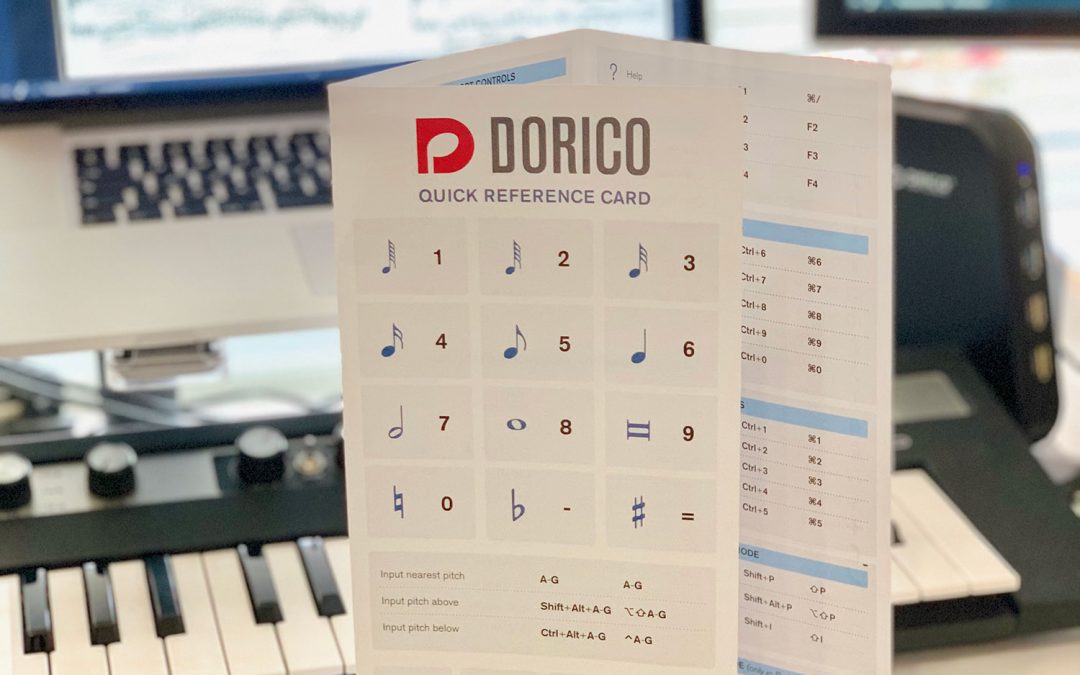
You can download them here:
https://blog.dorico.com/2019/06/quick-reference-cards/
The reference cards include many of the core commands used for note input, navigation, editing, and playback.
Dorico Shortcut Mousepads
Another option is to place the shortcuts directly under your mouse in the form of a mousepad.
There is a Dorico shortcut mousepad available for purchase:
https://shop.homayoon.tv/products/shortpad-compatible-with-dorico-windows
Steinberg also provides a free Dorico mousepad PDF that you can download and print:
https://blog.dorico.com/wp-content/uploads/Mousepad-EN-A4.pdf
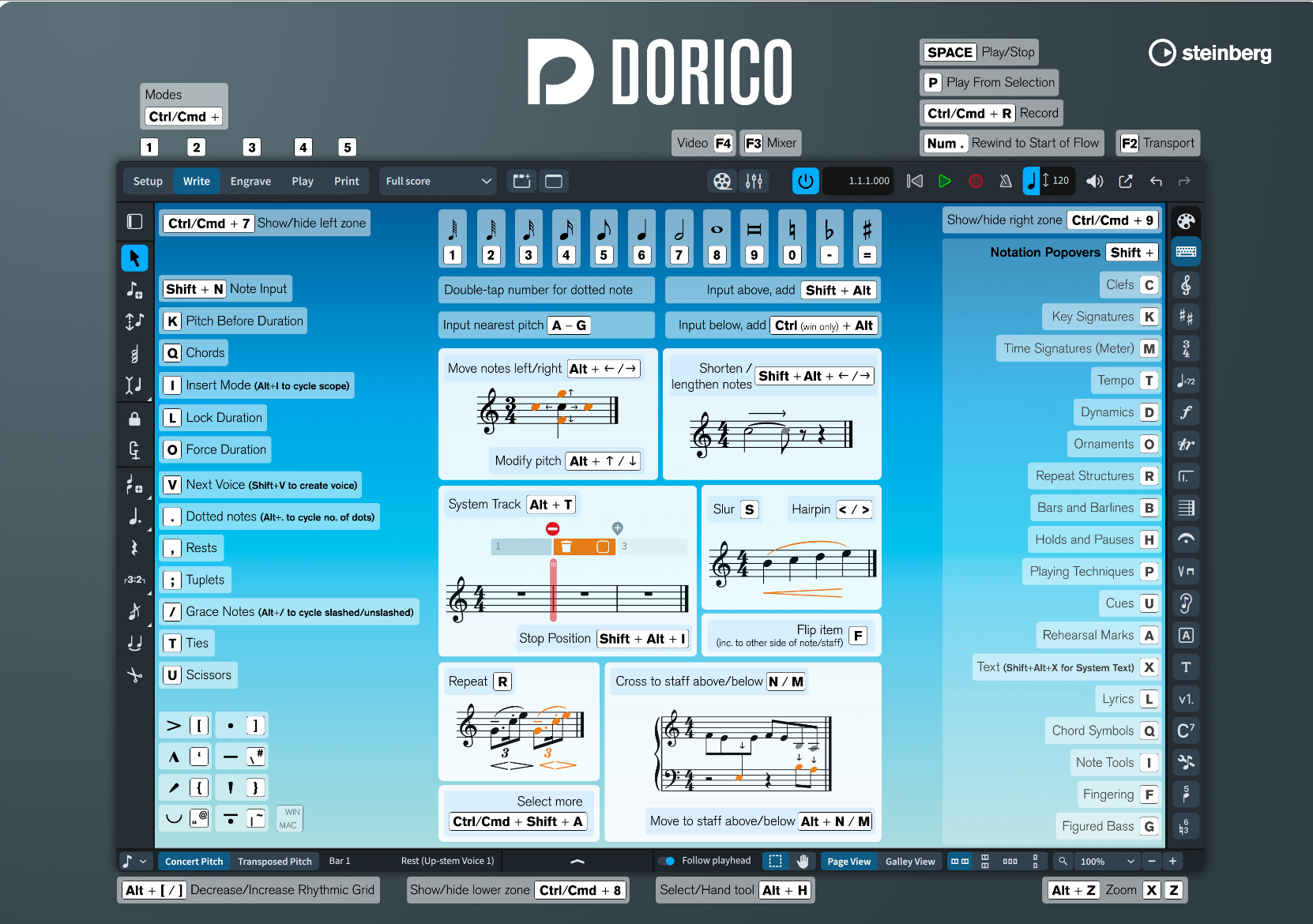
If you would like to turn the PDF into an actual mousepad, you can upload the design to a custom printing service such as:
https://www.youcustomizeit.com/search?q=mousepad. This is a simple way to keep the most important shortcuts visible while working.
Dorico’s Interactive Key Commands Map
Dorico also includes an excellent built-in tool that allows you to explore all key commands visually. In Dorico, choose:
Help > Key Commands 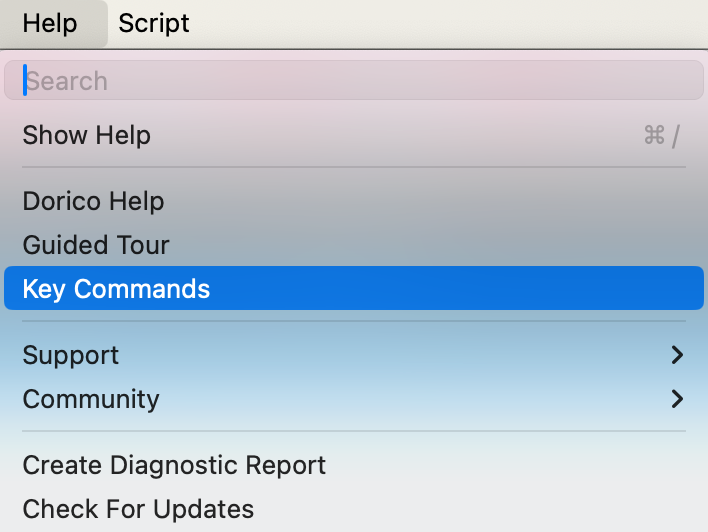
This opens Dorico’s interactive keyboard map where you can see which commands are assigned to each key. 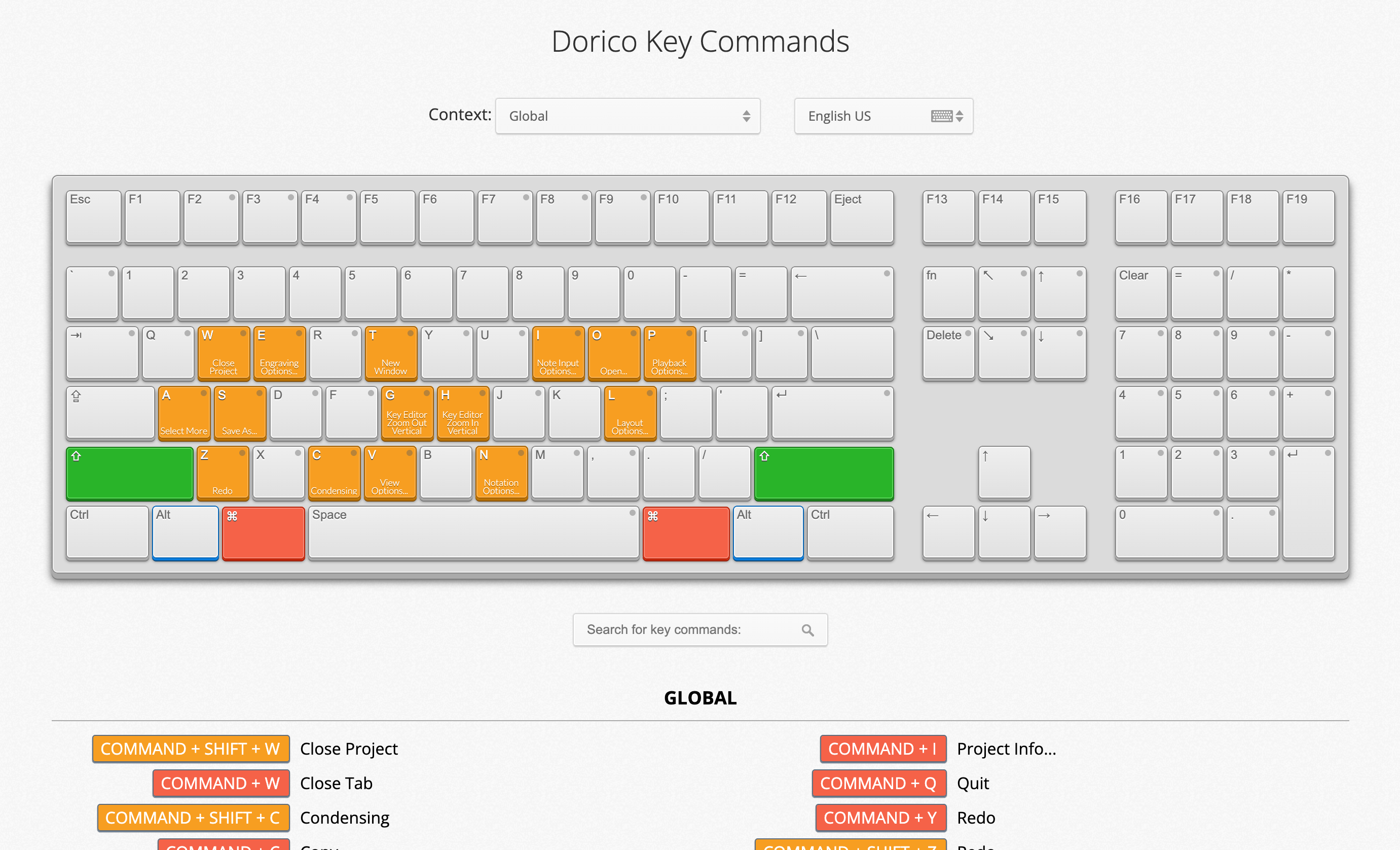
More information is available here:
https://www.steinberg.help/r/dorico-pro/6.1/en/dorico/topics/user_interface/user_interface_key_commands_interactive_map_r.html
This tool is especially helpful when learning the software or when searching for commands you may not yet be using. It opens in a web browser and displays a complete list of all key commands, including the ones that ship with Dorico and any custom commands you have added. This is specific to your copy of Dorico. You can print or save this list as a PDF by choosing Print in the browser that opened the page
How I Learn and Remember Key Commands
The way I remember key commands is fairly simple. If I find myself using a specific command repeatedly from a menu or panel, I check to see if there is a key command for it. If there is, I begin using the key command instead. With repetition, the command eventually becomes part of my long-term memory.
Creating Your Own Custom Key Commands
If there is not already a key command for something I use frequently, I sometimes create one myself. Dorico makes this possible by allowing users to define custom key commands. This is particularly useful for commands you use frequently but that do not already have a default key command. I covered this process in a previous post on this blog:
Final Thoughts
Learning key commands is one of the best investments you can make when working in Dorico. Whether you prefer printed quick reference cards, a key command mousepad, the interactive keyboard map, or custom key commands, these resources can help you work faster and more efficiently.
 Making the Most of Notation Software