

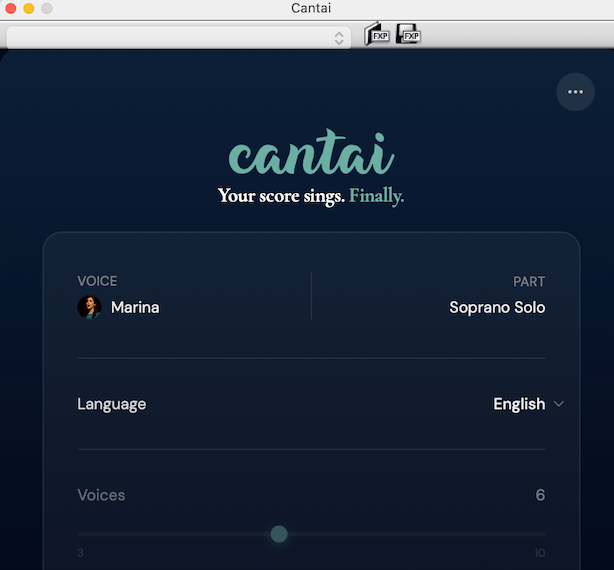
Cantai is an AI-powered vocal playback engine for Dorico, Sibelius, and MuseScore Studio that sings your lyrics using realistic solo and choral voices.
A single license works with both Dorico and Sibelius, so you only need one license if you use both notation programs. Although Cantai is not free, it does offer a free trial, monthly subscriptions, and lifetime licenses. You can view the current pricing here:
Cantai Plans & Pricing
I spent some time today getting Cantai working in Sibelius Ultimate. Since Sibelius support was just released, I ran into a few issues that may save you some time.
1. Download the latest Cantai installer
Be sure you download the latest installer from the Cantai website. The installer released before July 1 supported Dorico only. The current installer supports both Dorico and Sibelius. Download Cantai
2. Update Sibelius
Cantai requires the latest version of Sibelius Ultimate. At the time of writing, I am using Sibelius Ultimate 2026.6.
3. Make sure your staff is a Voice instrument
Cantai only works with voice instruments in Sibelius. For example, the Amazing Grace example included in my Berklee Online Sibelius course is set up using a Treble Staff. Even though it contains lyrics, Cantai would not recognize it.
I changed the instrument (Home > Instruments > Change) from Treble Staff to Voice (or Soprano Solo), and Cantai recognized the part.
4. Follow the official Cantai setup guide
The official installation instructions are available here:
Cantai for Sibelius Setup Guide
5. Create a custom Playback Configuration
This isn’t required, but I highly recommend it.
- In Sibelius go to Play > Setup > Playback Devices
- Click New.
- Create a playback configuration such as:
- Cantai Only
- NotePerformer & Cantai
This makes it easy to switch between playback setups.
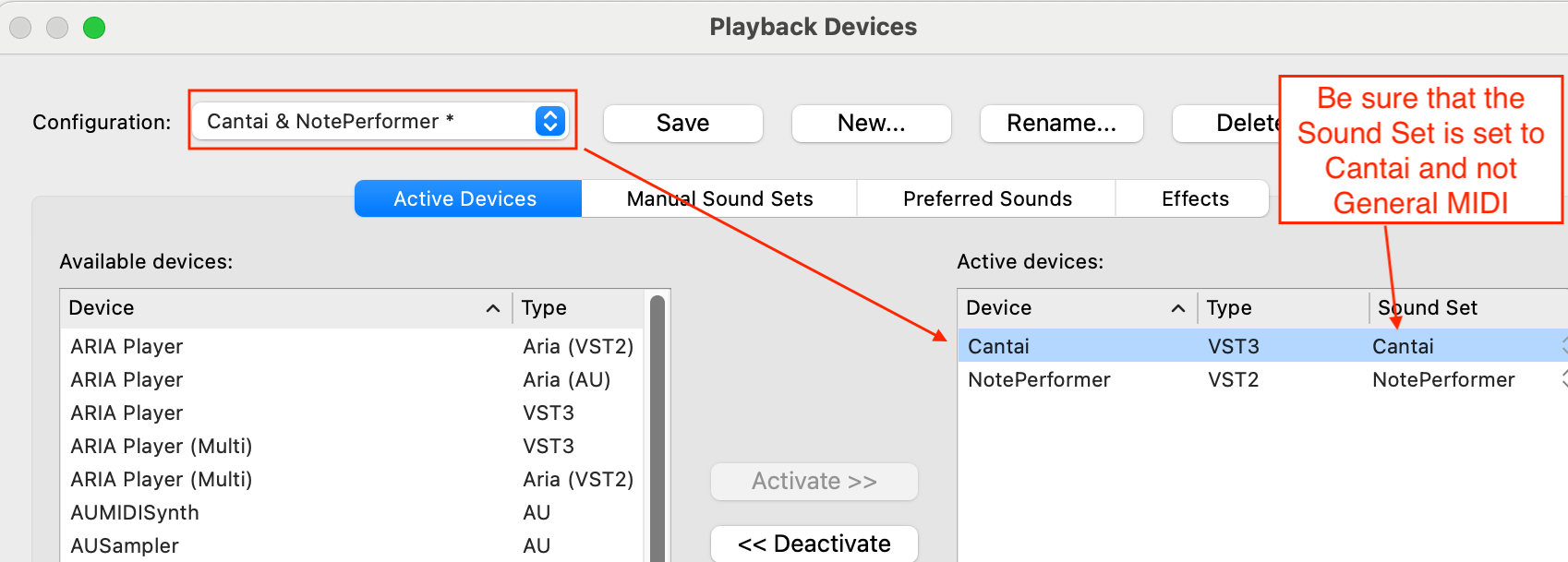
When I first activated Cantai, Sibelius automatically assigned the General MIDI sound set. Be sure to change the Sound Set to Cantai if this is the case.
Double-click on the Sound Set next to Cantai to make the necessary change.
6. Select the singer in the Mixer
After assigning Cantai as the playback device
- Open the Mixer (shortcut: M).
- Expand the Mixer so the Playback Device settings are visible.
- If your playback device is configured correctly, Cantai will automatically choose an appropriate voice for the selected vocal part.
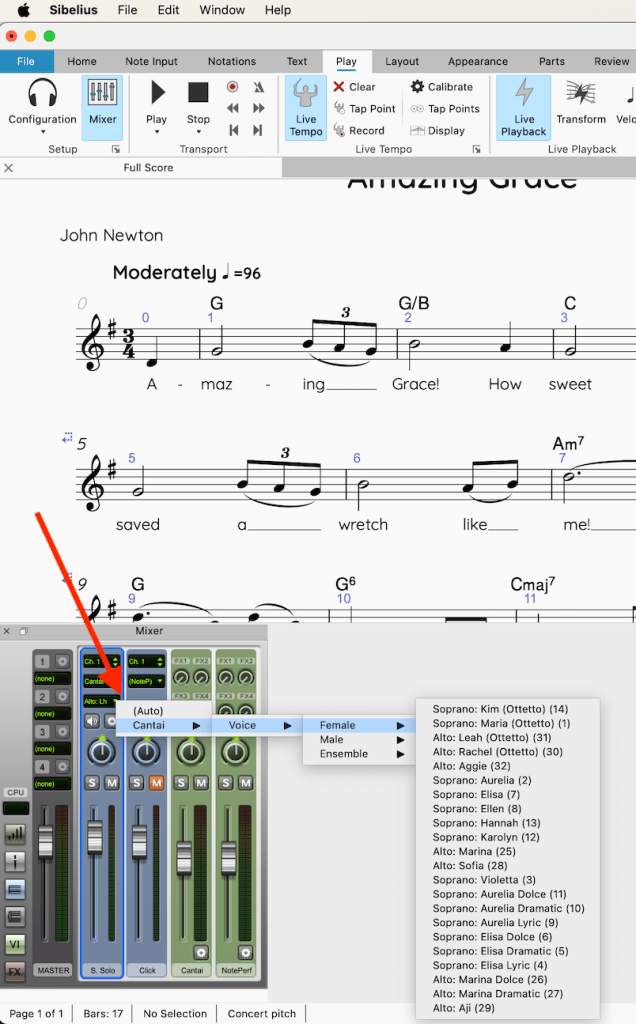
- If you would like to use a different singer, the voice is not selected from the Cantai window itself. Instead, it is selected from the Mixer. For each vocal staff, choose:
Here’s an example of the resulting playback. I exported the Sibelius score as a video using Export > Video.
Troubleshooting
If Cantai reports “No parts found,” check these items before trying anything else:
- Is the staff a Voice instrument?
- Are you using the latest Cantai installer?
- Are you using the latest version of Sibelius Ultimate?
- Is Cantai activated in Playback Devices?
- Did you change the Sound Set from General MIDI to Cantai?
- Did you assign a Cantai Voice in the Mixer?
These six items solved every issue I encountered. I hope these tips save you some time getting Cantai up and running in Sibelius.

